Pages

Tuesday, April 5, 2016

The Revit Project As a Tweeter(sic) Using Dynamo (In Four Steps)

Dynamo is to Architects & Designers what Scratch is to toddler geniuses learning to code. It gets us thinking in terms of manipulating the machine in terms of instruction sets rather than punching individual commands at the computer all day. More importantly, it is a platform that is designed to span between the world of coding and the world of assembling architecture. This, by definition, makes this extensible in both directions, seemingly without limits.

The Case for a Project Twitter

Personally, I'm not a tweeter (sic), but after a recent natural disaster, it was the only place to gather information about loved ones in a particular neighborhood. A typical architectural project is not a place where random strangers gather for a round of Kumbaya. However, a platform such as Twitter certainly breaks barriers when broadcasting to a team or a group. It could be anything from a gentle reminder, a recently discovered piece of vital information, or, live tweeting meeting notes. With Dynamo's Iron Python Interface and the ability to add  .dll libraries, along with Twitter's well documented Application Programming Interface (API), the rationale for building a connection between Twitter and the Revit Project quickly went from 'Is there a need?' to 'Why not?'.

The Process

As of the writing of the post, Dynamo does not have a package to retrieve Twitter timelines. PYTHON on the other hand had plenty of easy-to-use libraries to run circles around the twitter library. 'It would be a One-day fun project' I thought. It was... Until I discovered that the beloved 'Tweepy' library for Python does not work for Iron Python that Dynamo allows. I spent three days scouring google and attempting all sorts 'pip' installs - but to no avail. Finally, I gave up and went to my go to code kitchen: Visual Studio using C#. I had recently discovered that Dynamo had a Zero-Touch Plug-in environment that lets one import *.dll libraries and leverage their functionality. After finding a sufficiently simple library (Tweetinvi), I set to wrap the simple instruction sets so that it can work seamlessly with Dynamo.

00. Getting Started:

If you would like to try this on your own, you will need to import the Dynamo Twitter Connector. Unfortunately, I don't have this as a published package, but you are welcome to download the build the connector from GitHub source. Alternatively, you can simply download the Binaries (Debug) folder. Then you can 'Import Library' from the Dynamo 'File' menu to have the Connector show up in the tool palette.


01. Authentication: 

In order to connect to Twitter, Twitter needs to know who we are. Basically this involve creating an 'App' via your twitter account. You can do so by going to https://apps.twitter.com/ and signing in.
After, we can create four keys: the consumer key, consumer secret, access token, and access token secret.

02. Retrieving Time Lines:

Once you are authenticated, the rest is relatively simple from a coding perspective. All that is left to do is to hook-up your Dynamo Nodes to retrieve and convert tweets in your time line to a string.


03a. Displaying Time Lines:

This step involves setting up a 'Text' parameter in a Generic Annotation Family and hooking it up to the output of the previous step. Strangely, I'm finding that it is not easy to select annotation families in Dynamo. I had to jump through a couple of hoops - but it was the least of my problems.

03b. Tweeting from Revit:

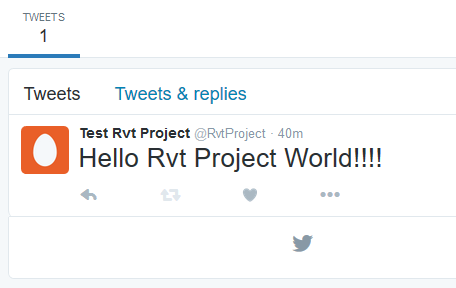
Tweeting from your Project is a breeze with the 'Publish Tweet' node.


Friday, July 31, 2015

Deleting Revit Backup Files Recursively using VB Script

Revit Back-up files are useful. However, it can be quite annoying when they fill up a folder and one accidentally starts working off of a back up rather than the latest file.

As a quick fix, I cobbled together a vbs script (learning a bit of vbs in the process) that would delete .rvt and .rfa back files (anything with the pattern <filename>.<####>.rvt or rfa.

Thursday, April 23, 2015

Geodesic Sphere - Bucky Ball Try out


A few years back, a client had asked if there was a way to build a Geodesic Dome in Revit. I tried, and tried... but got nowhere in the limited time I had. The only solution I could recommend was to use a script to generate points that could then be connected by adaptive components.
Then yesterday, when looking for something else (as is wont to happen more often than I care to admit), I found a tutorial by Tom Vollaro that broke down the problem in terms of simple geometry. I not only learnt how to build a geodesic sphere, but finally understood the underlying geometric basis for the form.

Of course, not all of us have the time to build it ourselves - So, I'm sharing :-). (You can download it from my drive here)

Wednesday, April 22, 2015

Revit Adaptive Components: Practical Archetypes: The Vaulted Ceiling – Part Two

Vaulted Ceiling Adaptive Component
Typical Manual Process of Placing The Adaptive Component

The next part of this two-part series focuses on the actual placement of the adaptive component (Part One can be found here: http://parametrix.blogspot.com/2013/01/revit-adaptive-components-practical.html. This part might tend to get boring since it entails the endless picking of Grid Intersections for all the bays of the building. Fortunately, this does not have to be the case: anytime you see a repetitive task, think of the purpose for inventing machines - the computer in this case. The only variables in this case are the eight Adaptive Points and they can be abstracted away in terms of their x & y coordinates ( the z coordinate is not being considered since it is being controlled by the internal instance parameters of the Adaptive Component). Once this information is read by a python code, it is just a matter of telling the python code to place the Adaptive Points at those coordinates.

Tuesday, April 21, 2015

Curved Curtain Wall Panels in Revit


Curved curtain walls are one of those things that pop up occasionally in an architectural project. If you are willing to live with a modified basic wall, HyunWoo Kim has a wonderful solution using wall sweeps. I had built a custom curved curtain panel family for a client a couple of years back and I recall the effort being a confusing mess of trigonometric functions. So when another client asked for pointers on building a curved curtain panel family, I decided to revisit the family and see if I could re-create the one I had built earlier (in Revit 2013). What I ended up with was a pleasantly clarified version without any of the trigonometric functions to muddy the waters.